Quick answer: Choose Keep for a short stop while holding cabin temperature, Pet for a pet while you stay nearby and monitor the app, and Camp when you remain inside to rest or sleep. Camp also powers the USB ports and low-voltage outlet, but disables Sentry, the alarm and Walk-Away Door Lock. Cabin Overheat Protection is a separate, temperature-triggered feature for the parked car.
Experience and scope: My June 2020 Model 3 has HW3, the Intel Atom media computer and 76,000+ miles. The eight photos, Camp Mode rests and No A/C setting shown here are from my car. Operating limits and Model 3/Y guidance come from Tesla’s manuals; follow the menus and alerts on your software version. My screen uses Celsius: 21°C is about 70°F.
Compare modes · Turn them on · Cabin Overheat · Battery use · Choose useful gear · When a mode stops
Keep vs Pet vs Camp: which mode should you use?
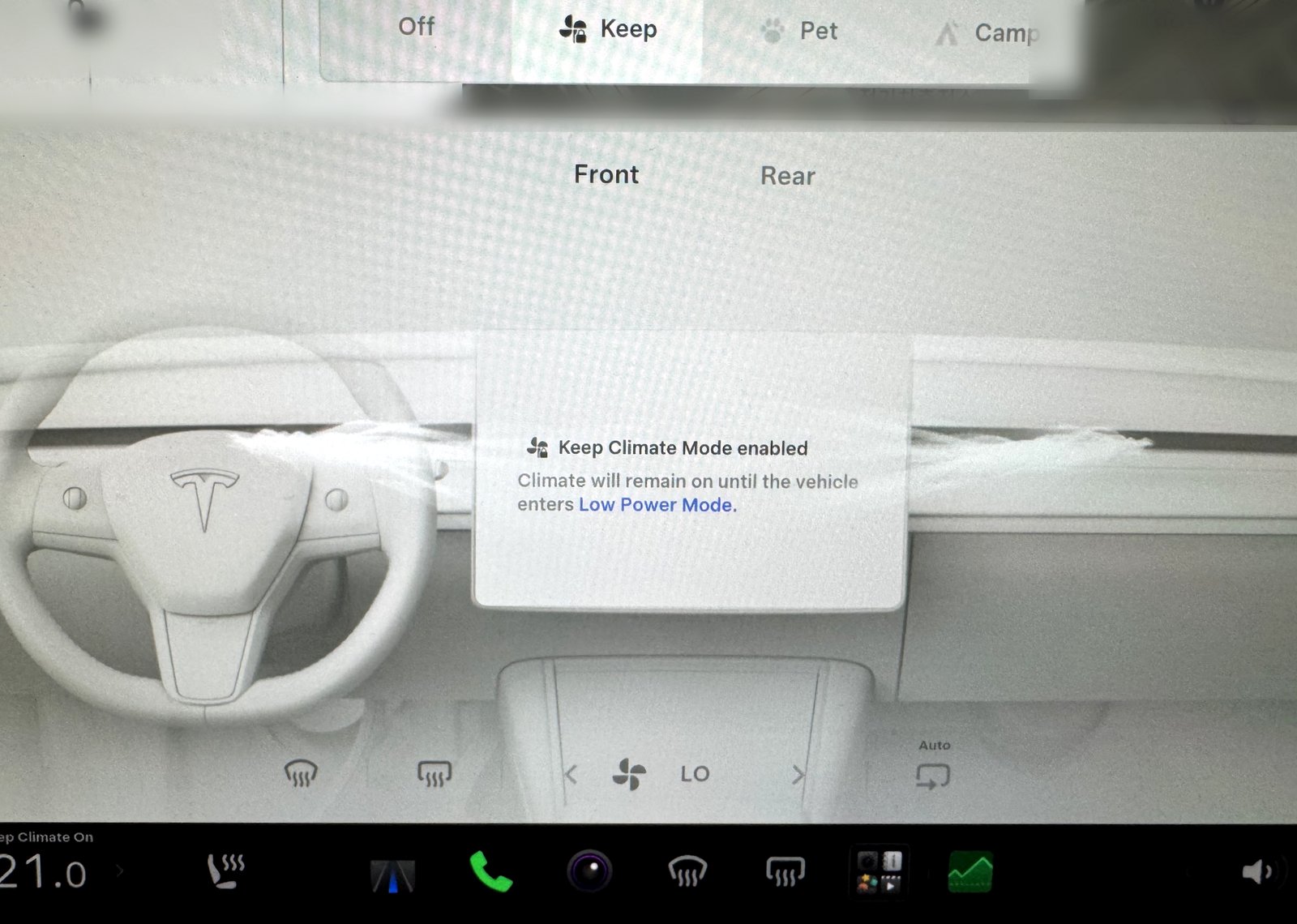
| Mode | Best for | What stays on | Watch-outs |
|---|---|---|---|
| Keep | Leaving the car briefly (groceries, short errand) while holding cabin temperature | Climate at your set temperature until Low Power Mode or you turn it off | Uses battery if unplugged; no special passerby message |
| Pet | A pet in the car while you stay nearby and monitor the app | Climate on; large cabin-temperature message on the touchscreen; windows locked against accidental roll-down | Not for people; needs app/cellular monitoring; Tesla says it stops below about 20% battery; will not enable if the cabin is already too hot |
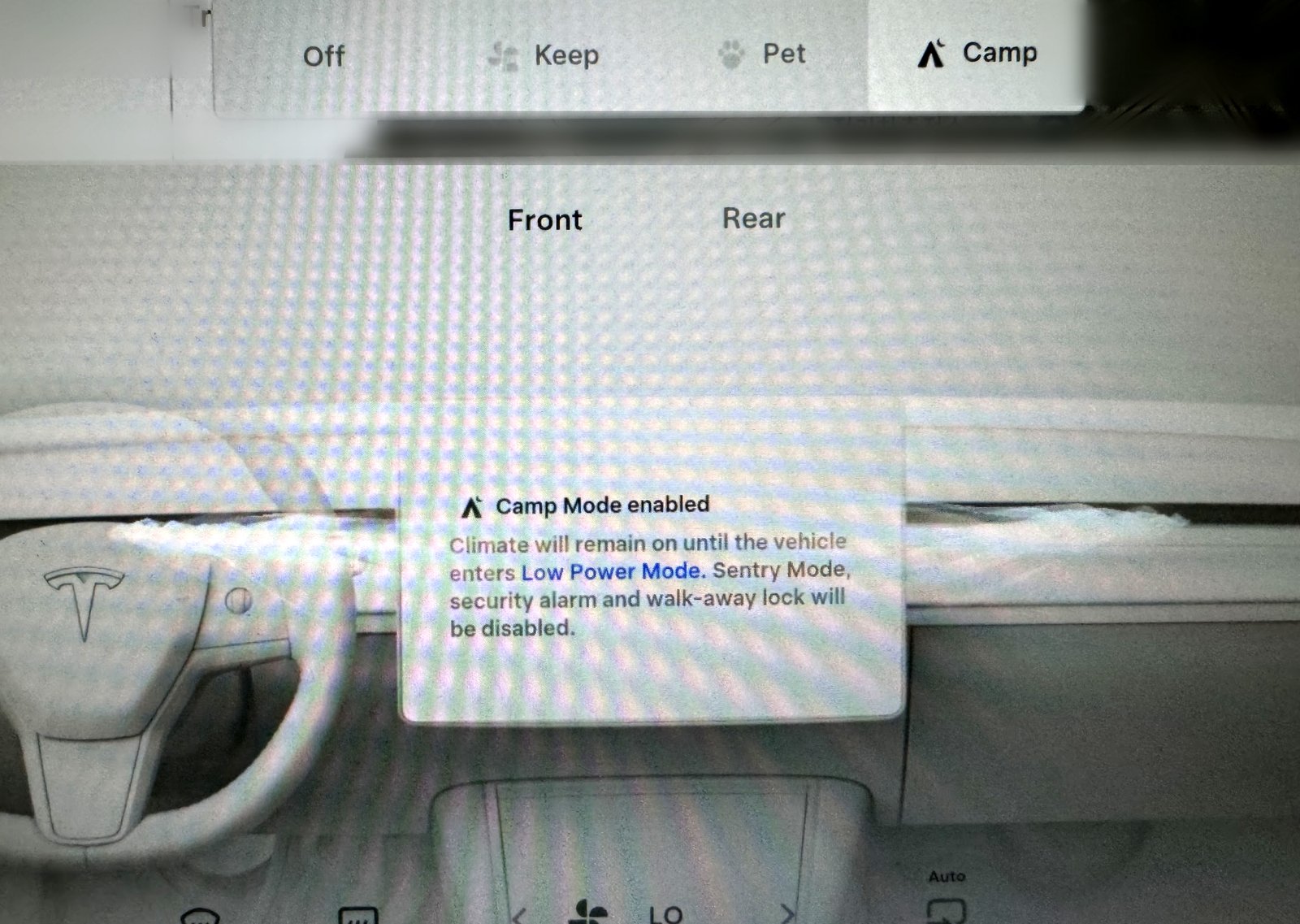
| Camp | Staying inside the car — overnight camping, or a nap between appointments | Climate on; screen stays awake for media/Arcade/Theater; USB and low-voltage outlet powered | Sentry Mode, security alarm, and Walk-Away Door Lock are disabled for the whole session |
| Cabin Overheat Protection | Reducing heat buildup while the empty car is parked | Temperature-triggered A/C with On; fan only with No A/C | Limited operating window; never use as protection for a child or pet |
How to turn on Keep, Pet or Camp Mode
- Park the car. Open the climate panel by tapping the temperature at the bottom of the touchscreen.
- Set a comfortable temperature. Let a hot cabin cool before enabling Pet Mode.
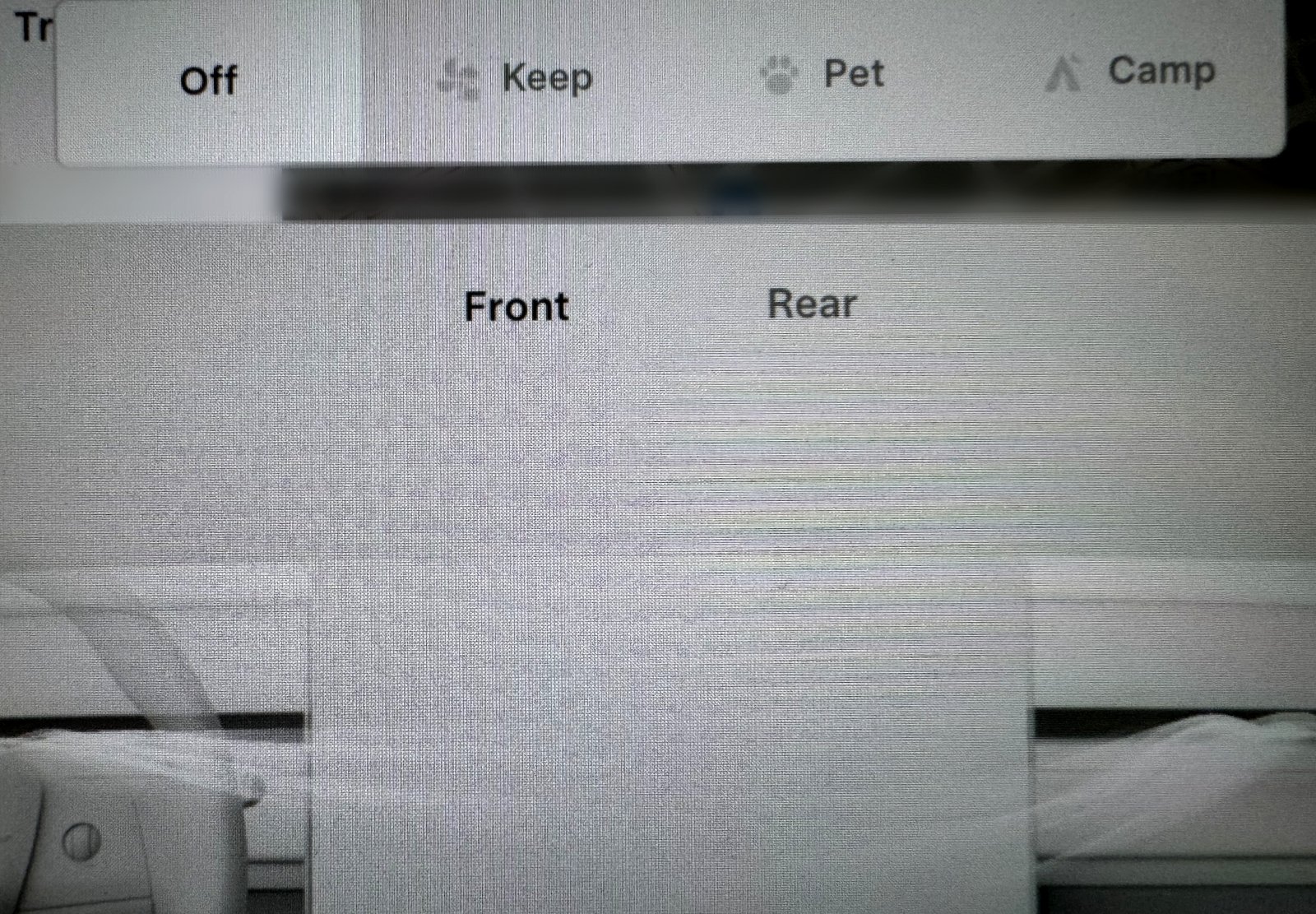
- Select Keep, Pet or Camp. On my screen the bar reads Off · Keep · Pet · Camp. Read the confirmation popup.
- Confirm it is running. Check the cabin and remaining battery; for a pet, verify the temperature in the mobile app and stay close enough to return promptly.
On supported software, Pet and Camp can also be controlled from the mobile app by opening Climate and swiping up from the bottom bar. If a choice is missing or immediately turns off, use the checks below.
Cabin Overheat Protection: On vs No A/C
Open Controls > Safety > Cabin Overheat Protection. Unlike Keep, this feature responds to cabin heat after you leave rather than continuously maintaining your chosen comfort setting.
- On: uses A/C when the cabin exceeds 105°F (40°C), or the selected temperature where that option is available.
- No A/C: runs the fan without cabin air conditioning. Choose this for ventilation with lower cooling capability; it does not hold a comfortable cabin temperature in extreme heat.
- Off: disables the feature.
The Exclude Home setting disables it at your saved Home location. Mine is unchecked and I use No A/C. Tesla specifies that Cabin Overheat Protection can take up to 15 minutes to enable after you exit, and operates for up to 12 hours after exit or until the Low Power Mode battery threshold is reached, whichever comes first.
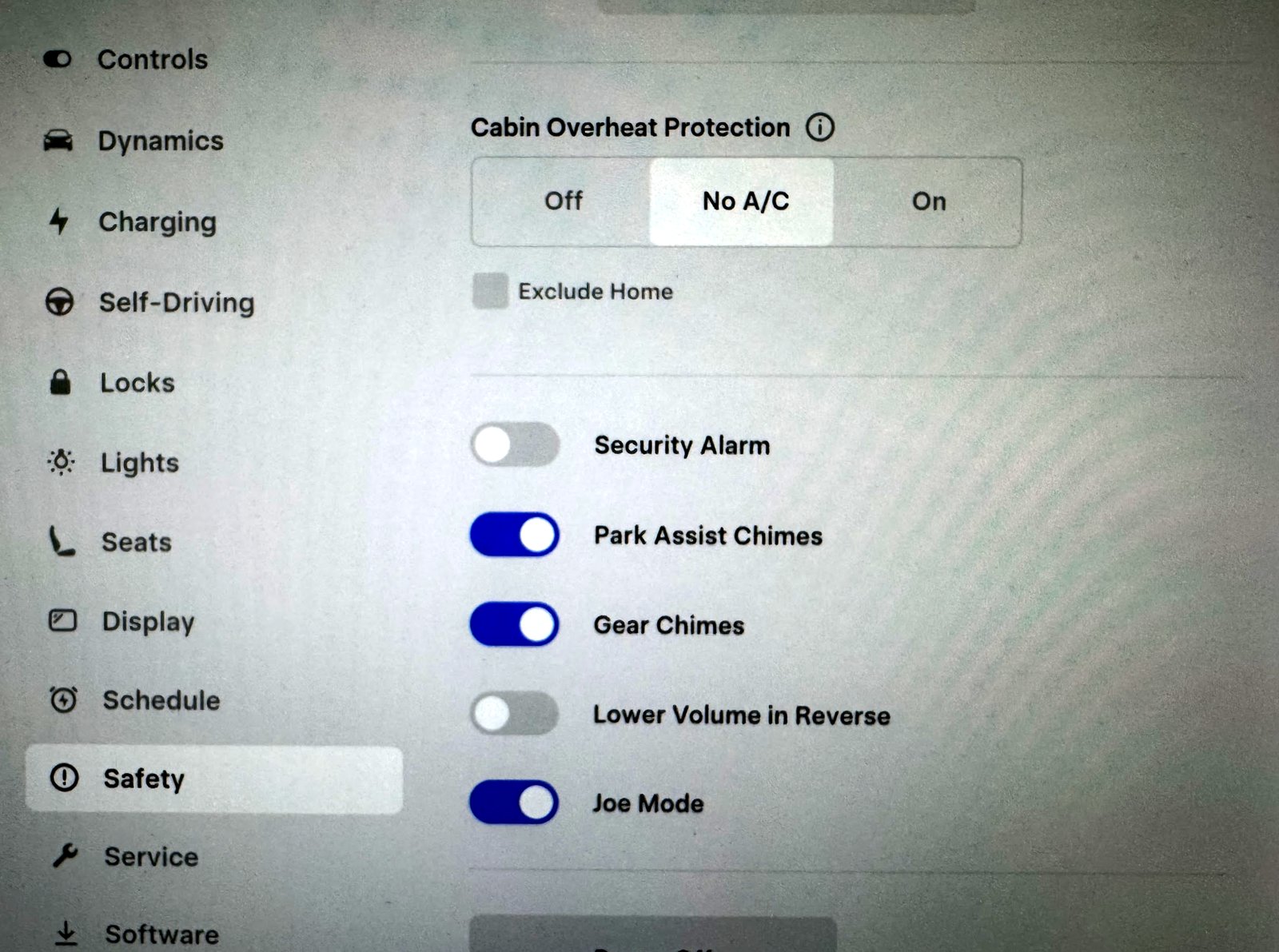
Important: Cabin Overheat Protection is a comfort feature, not protection for an unattended child or pet. Tesla also states that enabling it has no impact on vehicle-component reliability. Use Pet Mode with active monitoring for short pet stops; never leave a child unattended.
How much battery do Keep, Pet and Camp use?
There is no single hourly percentage that fits every car and night. Outside temperature, the cabin setpoint, heating or cooling demand, battery capacity and other active features change the result. A cold start or a sun-soaked cabin can also use more energy initially than maintaining a stable temperature later.
Use Energy > Park to identify where energy went. My recent Since Last Drive screen showed 0.6% total consumption: Screen Time 0.4%, Preconditioning 0.2%, and Cabin Overheat, Sentry, Mobile App, Summon Standby and Vehicle Standby each displayed as 0.0%.
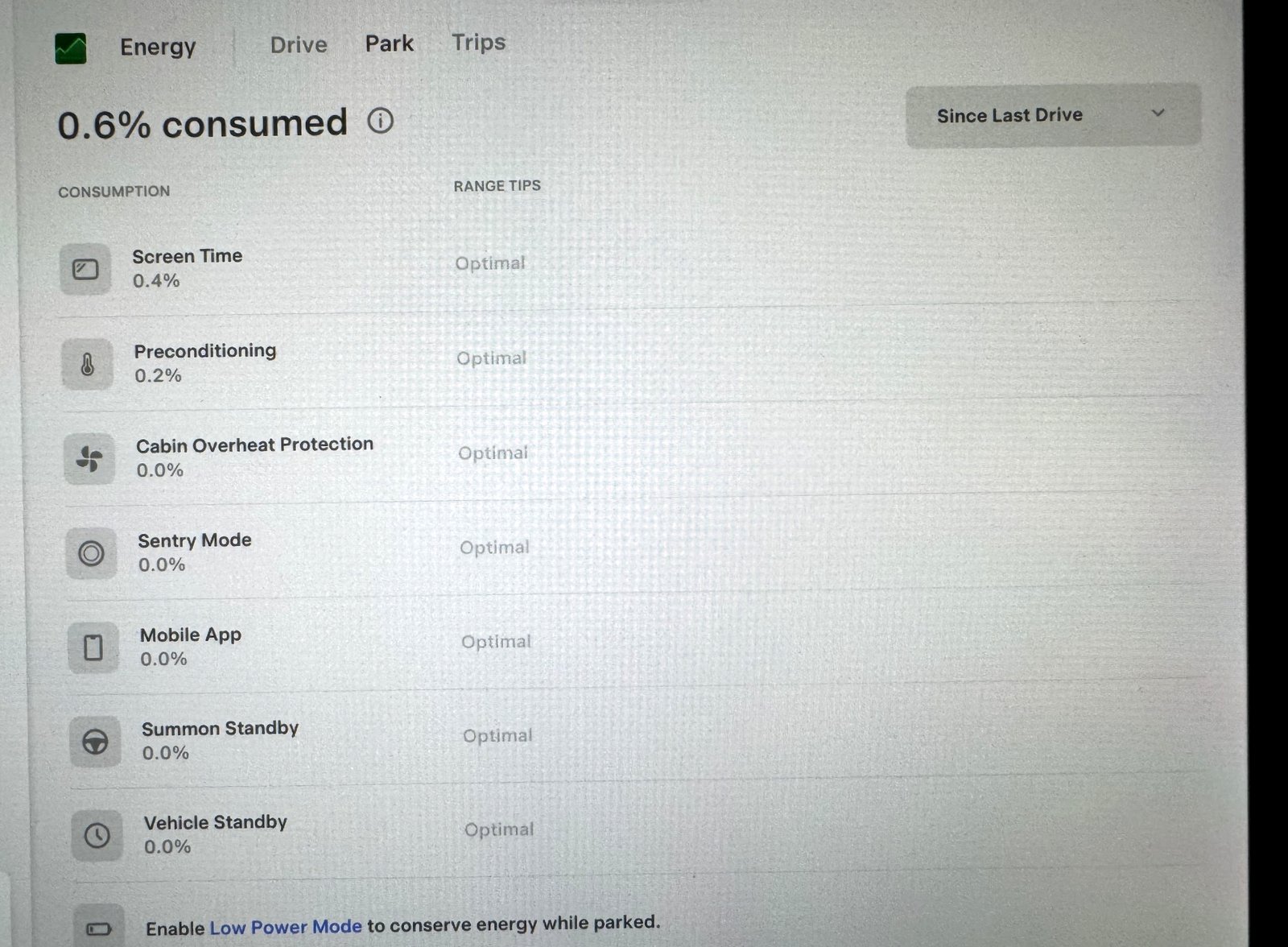
This snapshot is useful for reading the categories. Without a recorded parking duration and a controlled climate session, it cannot give an hourly Camp Mode rate or measure savings from No A/C. A displayed 0.0% is also rounded, rather than proof that a feature always uses zero energy.
Check your own hourly drain before an overnight stay
- Record the starting battery percentage, time, outside temperature and cabin setpoint.
- Run the intended mode for a known period while parked safely. Keep other settings consistent and note whether the car is plugged in.
- Record the ending percentage and inspect Energy > Park.
- Divide the percentage-point drop by elapsed hours. Repeat under conditions similar to your planned stay and leave a reserve for driving and weather changes.
Example calculation only: a drop from 70% to 67% in two hours equals 1.5 percentage points per hour. That is arithmetic, not a measured result from my car. An overnight estimate based on a short test remains approximate because climate demand can change.
Plug in when practical and keep enough charge for the next leg. For cold-weather planning, see winter range loss and ways to reduce it.
Camp Mode for a nap or overnight rest
I use Camp for short rests between appointments, not just camping. I park, select Camp, set a comfortable temperature—often around 70°F (21°C)—and rest with the screen dimmed. A hospital wait or a gap in the day can be enough reason to use it.
Lock deliberately and check the doors. Walk-Away Door Lock is inactive in Camp, as are Sentry and the vehicle alarm. Choose a suitable parking location, secure the car manually and keep valuables out of sight. Use a location with safe ventilation and no exhaust exposure from nearby engines.
Toybox’s Romance Mode provides a virtual fireplace for atmosphere while parked. It is separate from Camp; select the climate mode you need rather than assuming the fireplace enables it.

Pet Mode: short stops with active monitoring
On trips with my cat Sunny, I used Pet Mode for brief stops while remaining nearby. Its useful difference from Keep is the large cabin-temperature message for passersby. Supported software also lets you personalize the pet name and image under Controls > Display > Customize Pet Mode.
Before stepping away, confirm that cooling works, the app reports a comfortable cabin temperature, and both the phone and car have cellular connectivity. Keep checking the temperature and your pet’s well-being. Return promptly if climate stops or conditions change; app alerts are an aid to supervision.
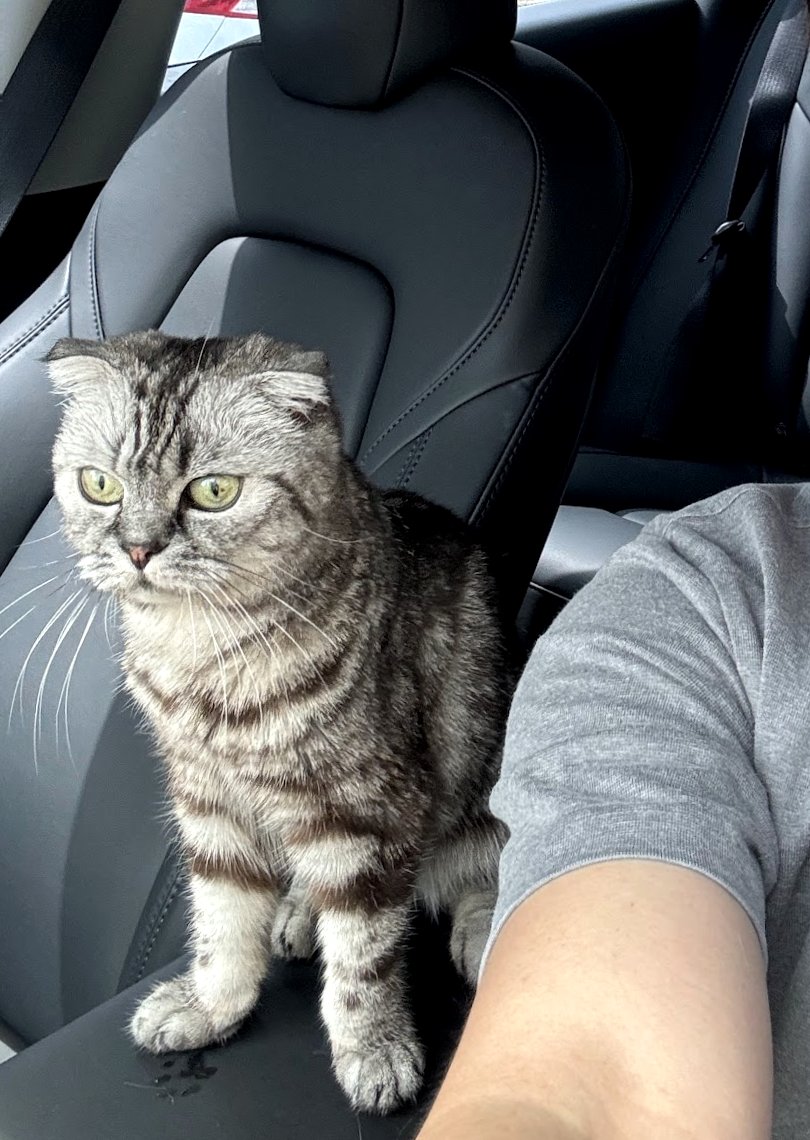
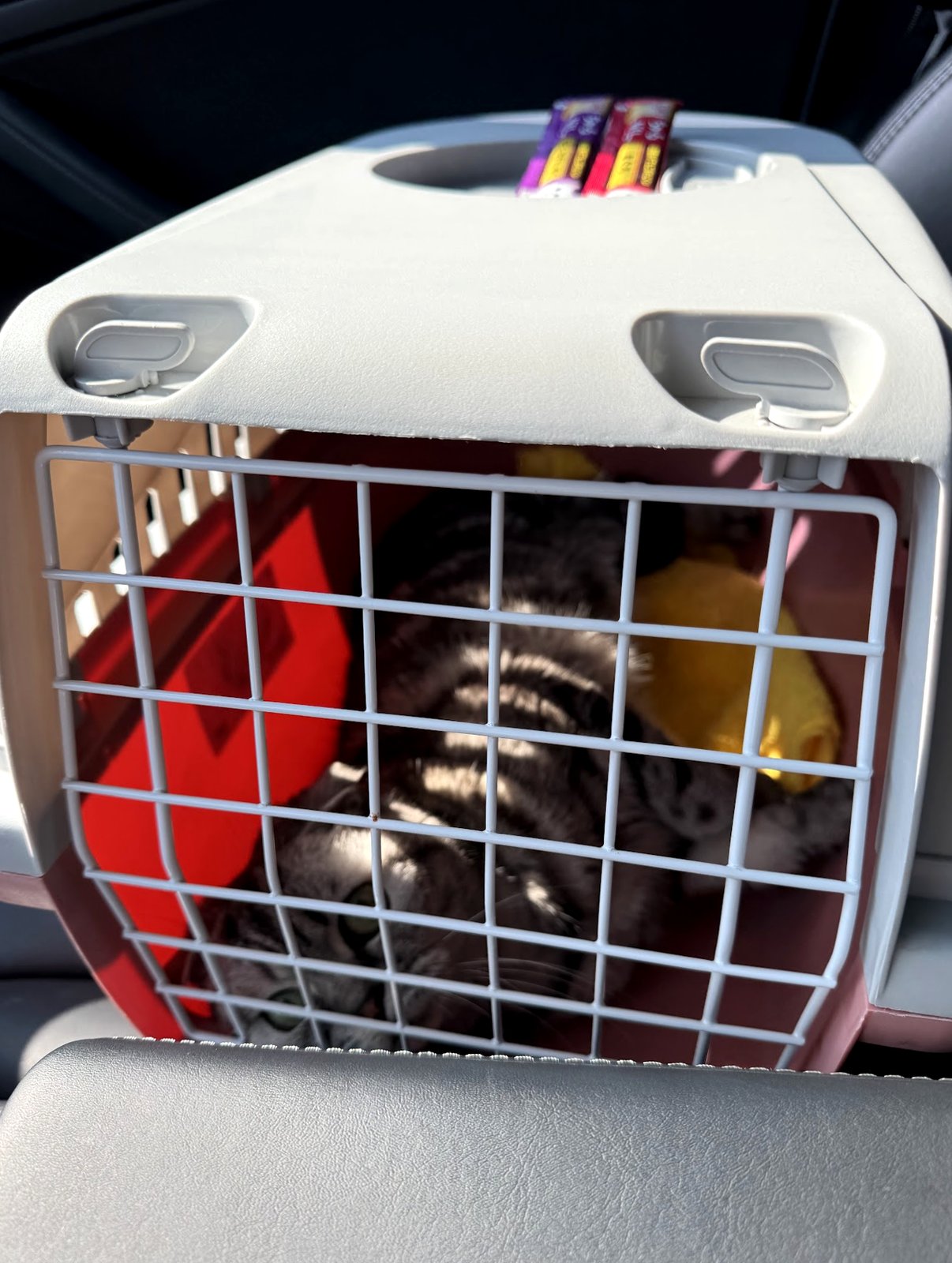
Pet Mode is for pets, not people. Window switches cannot roll the windows down while it is active, helping prevent accidental operation. Tesla’s current guidance says the app alerts you if climate stops, including a climate fault or the battery falling below 20%. Pet Mode may refuse to start when the cabin is too hot or a climate fault is detected.
What to buy for Camp Mode comfort and privacy
Choose accessories around your actual use: a short daytime rest needs different equipment from sleeping across the folded rear seats. My confirmed setup here is the car’s built-in climate modes; the criteria below help you select accessories without implying I tested a particular aftermarket kit.
1. Fit and requirements: measure the car and your sleeping space
- Windshield sunshade: match the windshield shape, model and build generation. Check the listed dimensions, how it stays in place and whether it folds small enough for daily storage.
- Privacy covers: choose the actual window set you need—side and rear windows for privacy, rather than assuming a windshield shade covers the whole cabin. Check mounting clearance around frameless windows, door seals and trim.
- Sleeping mat: measure the usable length and width with the front seats positioned for sleep and the rear seats folded. Compare the mat’s inflated dimensions, thickness, packed size and cleaning instructions.
Tesla’s climate instructions do not provide a universal aftermarket shade or mattress size. Use your vehicle measurements and the accessory manufacturer’s fit list; Model 3, later Model 3 and Model Y cabin shapes differ.
2. What to avoid: poor fit and accessories that create extra work
Skip listings that claim every Model 3 and Model Y fits without showing dimensions or model-year coverage. A bulky mat can consume headroom or interfere with a comfortable seat position. Poorly secured shades can fall down, mark trim or obstruct access. Keep vents and door releases clear, and remove visibility-blocking covers before driving.
3. Choose the minimum useful setup, then add what your stay needs
For a short daytime nap: start with a correctly fitted windshield shade if direct sunlight is the main discomfort. For privacy: compare a vehicle-specific side/rear cover set. For sleeping in the rear: compare a measured-to-fit folding foam mat with an inflatable mat—foam avoids inflation and puncture management, while an inflatable option can pack down smaller depending on its design.
Check the return policy and test fit at home before a trip. Shades and mats improve comfort and privacy; the climate mode, available charge and supervision remain the things to check for temperature control.
Mode unavailable or climate stops: what to check next
- Confirm Park and the selected mode. Reopen climate and check the popup or active-mode indicator.
- Check battery and Low Power Mode. Keep and Camp stop when Low Power Mode engages. Current software offers a 10–20% automatic threshold, defaulting to 20%, under Controls > Charging > Low Power Mode. Pet has its separate below-20% stop condition.
- For Pet, cool the cabin first and check alerts. A hot cabin or a detected climate fault can prevent activation. Stay with your pet if the feature cannot operate reliably.
- For Cabin Overheat, check the time and Home setting. Allow its activation delay, check Exclude Home, and remember its 12-hour/low-battery operating limit.
- Check actual heating or cooling. Repeated loss of temperature control, burning smells or climate/high-voltage alerts need service. If the A/C blows warm and VCFRONT_a447 keeps returning, see my VCFRONT_a447 A/C condenser repair and cost guide. For cold air when heat is requested, use the no-heat troubleshooting guide. If a low-voltage alert accompanies the problem, follow the 12V / VCFRONT warning guide.
Frequently asked questions
Can I lock the car in Camp Mode?
Yes, but Walk-Away Door Lock is inactive. Lock manually and verify the doors; Camp also disables Sentry Mode and the security alarm.
Does Camp Mode keep USB and the low-voltage outlet powered?
Yes. This is part of Camp Mode’s intended behavior. Check the outlet rating and voltage requirements for the device and your vehicle before connecting equipment.
Why did a scheduled software update not install?
Keep, Pet and Camp block software installation while active. Turn the parked-climate mode off before the update window when the cabin is empty. For an update that remains stuck, use the update and connectivity guide.
Is Cabin Overheat No A/C the same as Pet Mode?
No. No A/C provides fan-only ventilation and does not maintain your pet’s comfort setpoint. Use Pet Mode with adequate charge, working climate control and active monitoring for a short nearby stop.
Reference details
Operating limits were checked against Tesla’s Model 3 climate controls, Model Y climate controls and Energy app / Low Power Mode guidance. See the site disclaimer for scope.
— Volt Fix Garage
Leave a Reply