Quick answer: First check whether the Tesla is downloading, waiting to install or actively installing. For a stalled download, check alerts, Wi-Fi Diagnostics and another network or phone hotspot. With VCFRONT_a182, resolve the low-voltage battery warning before expecting the update to complete.
During installation, keep the car parked and follow the vehicle’s instructions. If there is no completion notification after more than three hours, use Tesla’s troubleshooting guidance below instead of repeatedly resetting the car.
Update phase · Seven fixes · LTE problems · Garage Wi-Fi buying guide
Experience and scope: My June 2020 Model 3 has HW3 and an Intel Atom media computer. Its a182/a402/a192 warnings blocked updates; updates worked again after low-voltage battery replacement. I have also used scroll-button restarts for LTE loss. The photographs show my car’s software and Wi-Fi screens. The network comparisons and update procedures below combine those observations with Tesla’s instructions.
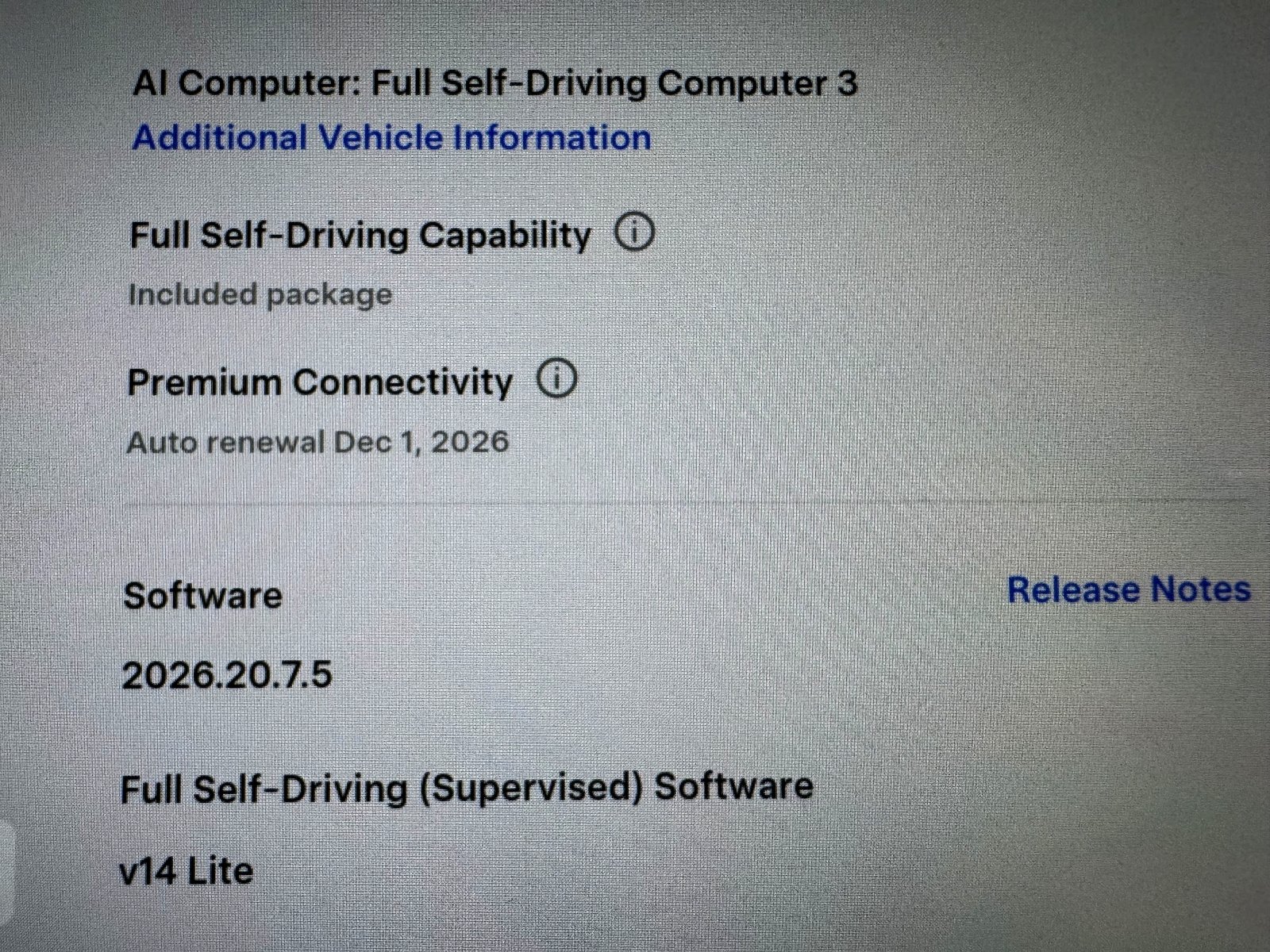
Downloading versus installing: choose the right response
Downloading depends on a usable data connection. Look at the status and connection diagnostics, not only the percentage. A green download arrow indicates download activity; a yellow download icon calls for Wi-Fi. When the package is ready, the install/schedule control appears.
Installing is different. You cannot drive, and charging pauses until installation finishes. Keep Climate On, Pet/Dog Mode and Camp Mode can prevent installation from starting. Allow enough parked time rather than scheduling an update just before a necessary journey.
A percentage that remains unchanged does not tell you which internal operation is running. Avoid diagnosing “80% means verification” or blaming the processor from the progress number. Use the actual status, elapsed time and alerts to decide the next action.
Update and connectivity: free checks versus service
| Symptom | First action | Next decision |
|---|---|---|
| Download not progressing | Check Wi-Fi Diagnostics and try another suitable network | Repeated failure on good networks: contact service |
| Downloaded; install unavailable | Check active alerts and climate modes | a182 requires low-voltage battery replacement |
| Installing; no completion after over 3 hours | Check app status; Tesla support describes a touchscreen restart | Still unsuccessful: schedule service |
| Garage connection drops | Compare closer parking or a hotspot | Improve signal only after the comparison points to the network |
| Public Wi-Fi needs a web sign-in | Use a supported private network or hotspot | Captive portals are not supported by the car |
| LTE apps stop but Wi-Fi works | Check coverage, affected services and account entitlements | Persistent cellular loss in good coverage: service |
Seven practical fixes for a stuck update or connection
1. Check the alert list before changing the router
Open the active alerts and read the complete action text. VCFRONT_a182 explicitly states that software will not update until the low-voltage battery is replaced. In my case it appeared with a402 and a192. After replacement, the warnings cleared and updates worked again.
Use the low-voltage warning and replacement guide when those alerts are actually present. More urgent electrical warnings take priority over download troubleshooting.
2. Run Wi-Fi Diagnostics and compare a phone hotspot
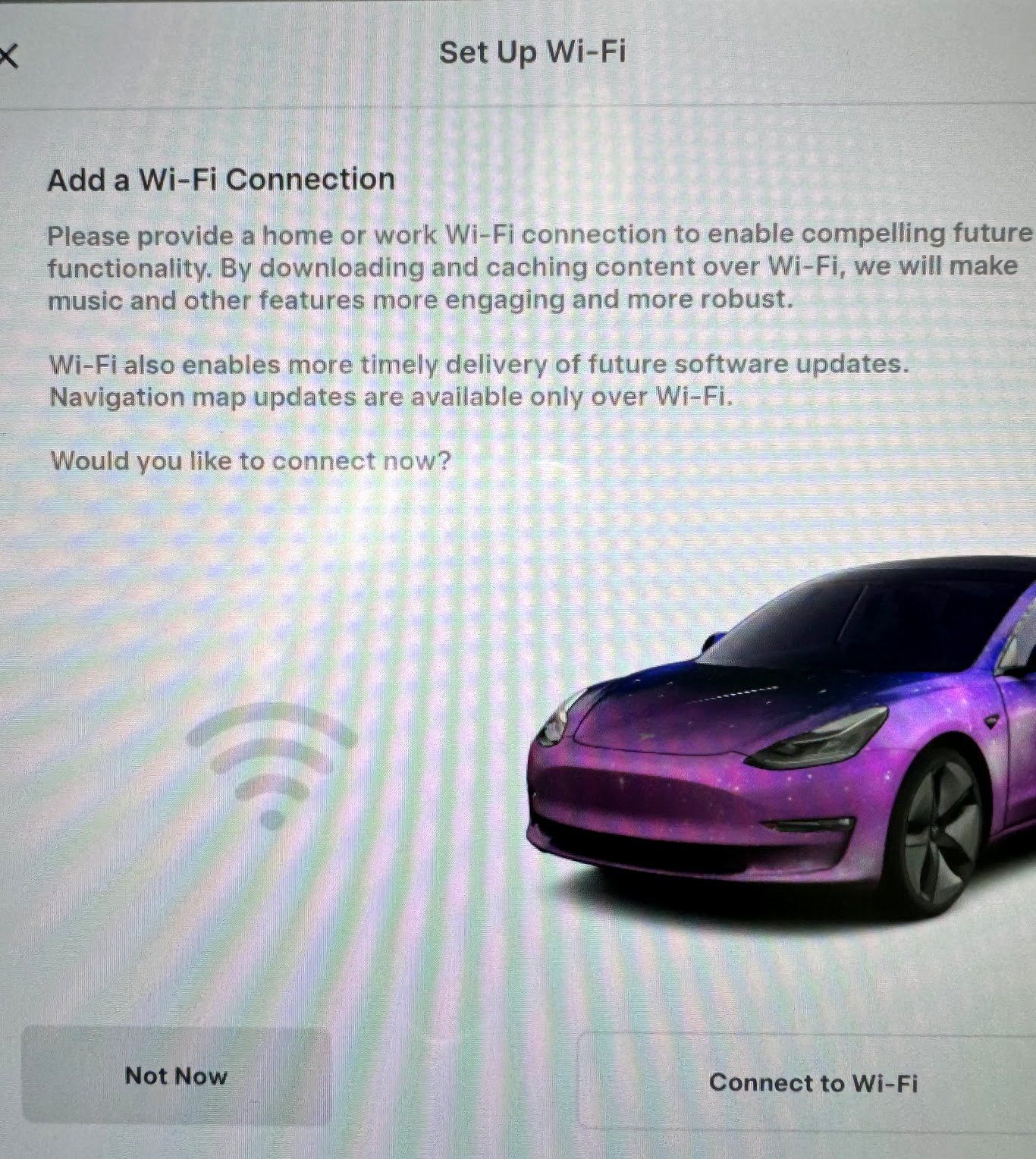
While parked, open Controls → Wi-Fi → Diagnostics, where available. Check whether the problem is weak signal, network access or communication beyond the router. Then compare a different usable network, such as a phone hotspot with good cellular reception.
Set up the hotspot, connect from the car and watch whether the same download advances. Improvement on the hotspot points you toward the home-network path. If you use the hotspot beyond a parked test, check the car’s Remain Connected in Drive option and your mobile-data allowance. Downloads can use substantial data; the phone also needs power and coverage.
3. Improve the connection at the actual parking space
A fast broadband plan cannot compensate for a weak link at the car. Compare parking closer to the access point or another nearby permitted parking position. If the connection improves, an access point or mesh node nearer the garage may help.
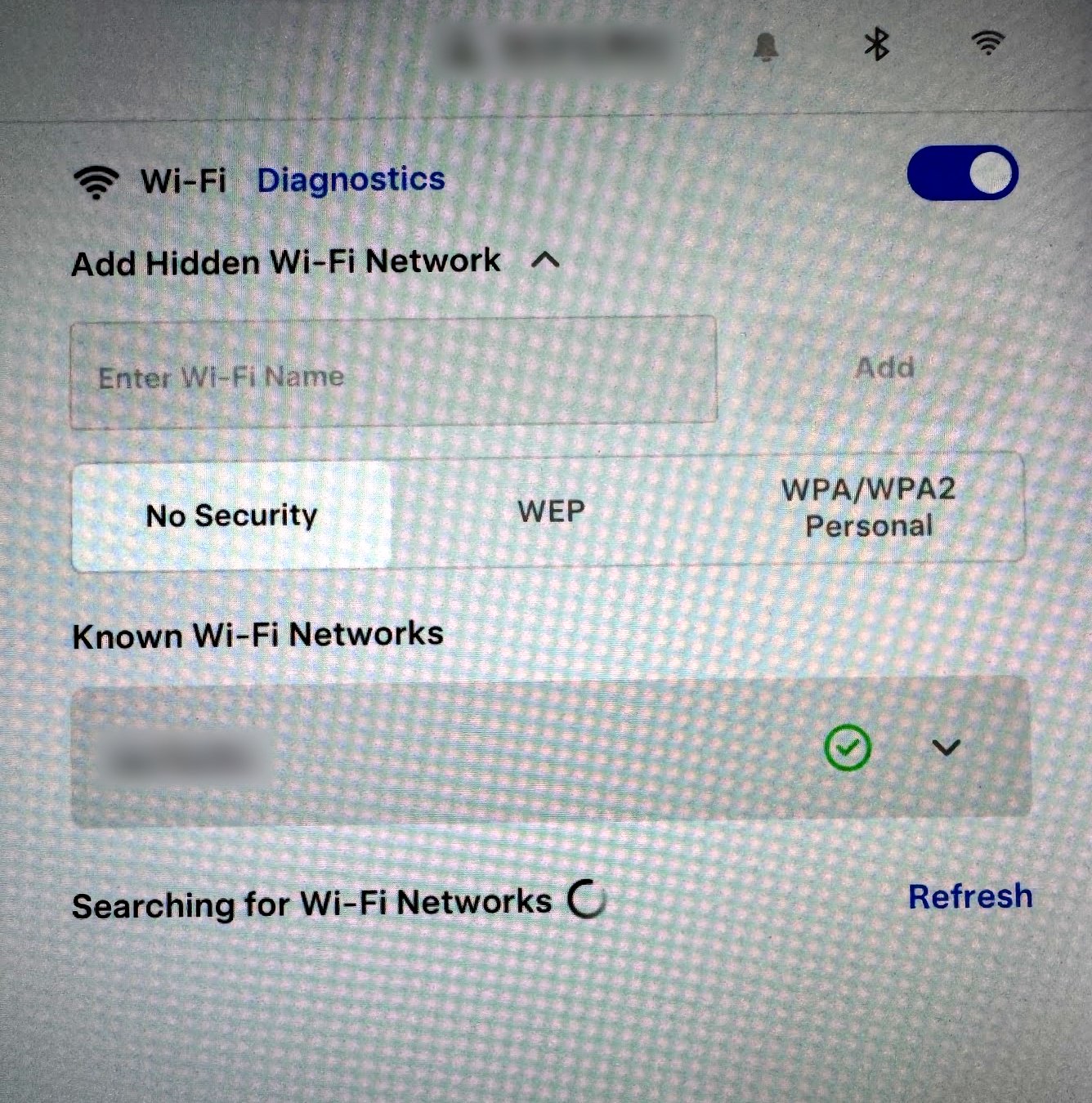
Where both the car and router support them, compare 2.4 GHz and 5 GHz rather than assuming the faster band is best. A separate test network can make the comparison easier. My photographed add-network screen lists WPA/WPA2 Personal; use supported secure settings rather than the obsolete WEP or open-network choices shown alongside it.
For a network with a browser-based hotel or guest login, choose another connection: Tesla’s manual says captive Wi-Fi portals are unsupported. A travel router is only useful if its manufacturer and the network operator support the required authentication and sharing arrangement.
4. Forget and reconnect the network; review update preferences
For a connection that repeatedly fails, use Forget Network, then reconnect with the correct credentials while parked. Compare the result before making more router changes.
Under Controls → Software, Advanced can receive additional releases ready for the vehicle sooner than Standard. It does not force an unavailable update or enroll the car in Early Access. Choose it for release preference, not as a cure for a broken download connection.
5. Restart for a connection fault; use the separate prolonged-install rule
For a frozen interface or connection problem outside an active install, stop and select Park before using the two-scroll-button touchscreen restart. This restarts the screen, not every vehicle component.
For a prolonged installation: Tesla’s current support page says to check update status and, if no “Software Update Complete” notification has arrived more than three hours after the start, try its touchscreen-reboot procedure. If the update remains unsuccessful, schedule service. Follow the live instructions on the vehicle and the current Tesla support page; do not improvise a battery disconnect, repeated power cycles or a drive during installation.
6. Check why installation has not started
If the download is ready but installation has not begun, confirm the schedule and review any active Keep Climate On, Pet/Dog or Camp setting. Set aside time when the car can remain parked. If the car reports an unsuccessful update, record that exact message rather than treating it as a Wi-Fi symptom.
Keep the car’s power warnings separate. A router purchase will not override an a182 battery block, and a Premium Connectivity subscription does not guarantee delivery of software packages over LTE.
7. Send Tesla a useful service report
Include the software version, status text, elapsed time, exact alerts and results on home Wi-Fi versus another network. Say whether the car is usable and whether the app reports completion. This helps separate transfer, installation and power issues.
Use Tesla’s support path for a persistent failure. Service Mode module tests or Software Reinstall are not a first-line download fix; have Tesla direct any service routines. Reinstalling existing software is different from receiving a new release.
LTE not working: coverage, service access or the car?
Start with the scope of the failure. If cellular services fail in a parking structure but return in an area with good coverage, location is a useful explanation. If basic connection works but one streaming service fails, check that app’s account and the connectivity entitlement it requires.
My car has lost LTE, and screen restarts have been useful in that context. For readers, perform the restart safely in Park. If cellular loss persists across good-coverage locations while Wi-Fi works, report that comparison to Tesla. A lapsed streaming subscription, a phone’s Bluetooth dropout and a vehicle cellular fault need different remedies.
For phone-to-car music interruptions, use the Bluetooth audio diagnostic sequence. Buy a networking accessory only after the tests show which connection needs help.
Garage Wi-Fi equipment: when an upgrade is worth buying
1. Match the car and the parking location
Tesla recommends a reliable Wi-Fi connection, rather than a specific router speed or brand. Choose an access point with bands and security the car supports and coverage at the parked vehicle. Consider a wired backhaul to the garage where practical; any outdoor installation needs equipment and power protection suitable for that location.
2. Avoid buying by speed class alone
A high-speed router placed behind the same obstacles can leave the same weak signal. Avoid a 6 GHz-only or unsupported-security setup without confirming vehicle compatibility. A mesh node also needs a good link to the main network; placing it in a dead spot does not create usable backhaul.
3. Choose after the free comparison
Try the phone hotspot and closer parking first. If those work and garage Wi-Fi does not, improve access-point placement or add a suitably connected node. If the transfer fails across good networks, save the accessory budget and ask Tesla to investigate. The screens here document my car’s options; no particular router model is being presented as a tested owner pick.
Frequently asked questions
How long does an update take?
It varies by package and connection. Some installations take around 30 minutes and others take hours. Reserve parked time and use the status and Tesla’s prolonged-install guidance rather than a fixed percentage deadline.
Can I drive while it downloads?
Tesla allows driving during download, though leaving Wi-Fi can interrupt it. You cannot drive during installation. Set up network changes while parked.
Does Advanced fix a stuck update?
It changes release preference. A connection or power fault still needs its own fix.
Should I replace the battery for every failed update?
Follow the actual alert. In my a182 case replacement restored updates; a download failure without that warning calls for the connection and status checks above.
References
See Tesla’s update phases and preferences, Wi-Fi diagnostics and hotspot guidance and update troubleshooting support. Use the instructions for your vehicle and current software.
— Volt Fix Garage
Leave a Reply