Short answer: For Dashcam unavailable or USB write errors, check the recording state, supported data port, cable and format before replacing storage. My long-term NEXTU SSD setup and the buying guide below show a practical replacement route. Copy important footage before formatting: formatting erases the drive.
Jump to: my SSD result · USB port · troubleshooting · verify recording
Experience on my car: June 2020 Model 3, HW3, Intel Atom, 76,000+ miles. I experienced recording errors with a USB flash drive, tried formatting and a replacement cable, removed a hub, and now use a NEXTU portable SSD directly in a front console port.
Manual-based guidance: storage requirements, formatting and later-car port differences below come from Tesla.
Tesla Dashcam storage: specification and choices
| Requirement / choice | What to buy or check | Use case |
|---|---|---|
| Official minimum capacity | 64 GB or greater | More space allows more retained footage |
| Official sustained writing | At least 4 MB/s; USB 2.0 compatible | Peak read speed is not the write requirement |
| Format | exFAT via car; TeslaCam folder when manual | Back up footage before formatting |
| NEXTU portable SSD | My direct-connected setup; nearly 5 years reliable use | Useful reference for an SSD route, exact current model must be checked |
| Suitable flash drive / endurance-card setup | Meets sustained writing, temperature and data-interface needs | Alternative to SSD when fully supported |
| Data cable and port | Data-capable cable; glovebox if fitted or supported front port | Charging-only cable/port cannot record |
What happened to my USB drive—and what changed
This was more than a slow video viewer: errors with the USB flash drive sometimes meant no recording at all. That matters because discovering the problem after an incident is too late to recover footage that was never written.
I tried formatting the drive and replacing the cable with one I trusted. I also used a hub for a time, then removed it.
The setup that has stayed reliable for me is the NEXTU portable SSD connected directly to the car, with no hub. It has been nearly five years without problems in my use.
Recording errors, a paused recorder and camera warnings
- Dashcam unavailable or a storage/write-speed warning: start with the USB recording path below. Note the exact message before changing anything.
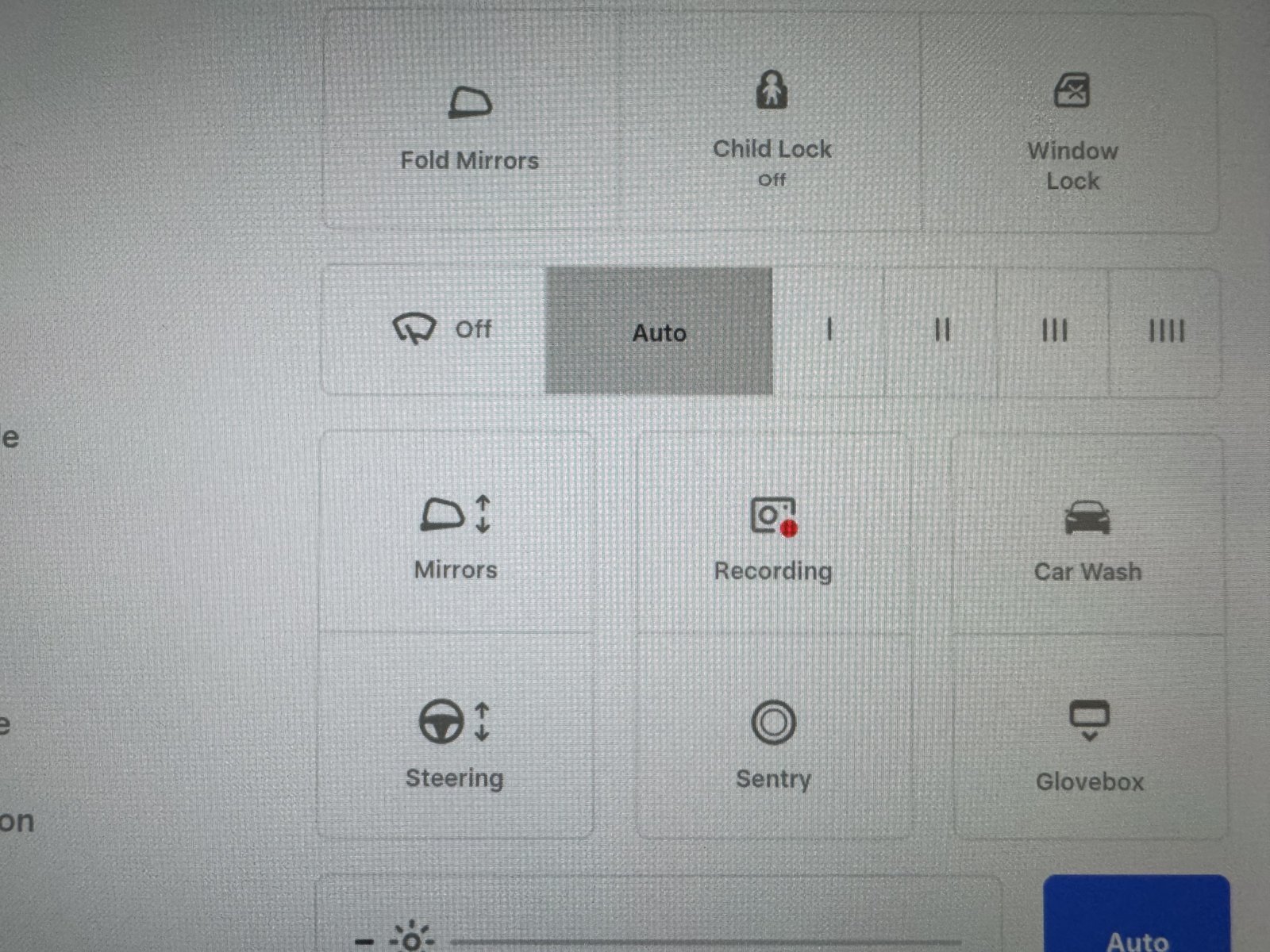
- A paused recorder: check its status before assuming the drive failed. Tesla’s recording indicator has a red dot; holding the icon pauses recording, and touching it resumes.
- A viewer that is loading: allow it to open and test a recent saved clip. Test a newly saved clip before replacing storage.
- Autopilot or camera-visibility warnings: those need a different diagnosis. If that is your symptom, use my camera unavailable checks.
Which USB port should I use?
My June 2020 car records through a front console data port and has no glovebox USB socket. The photos show that specific configuration.
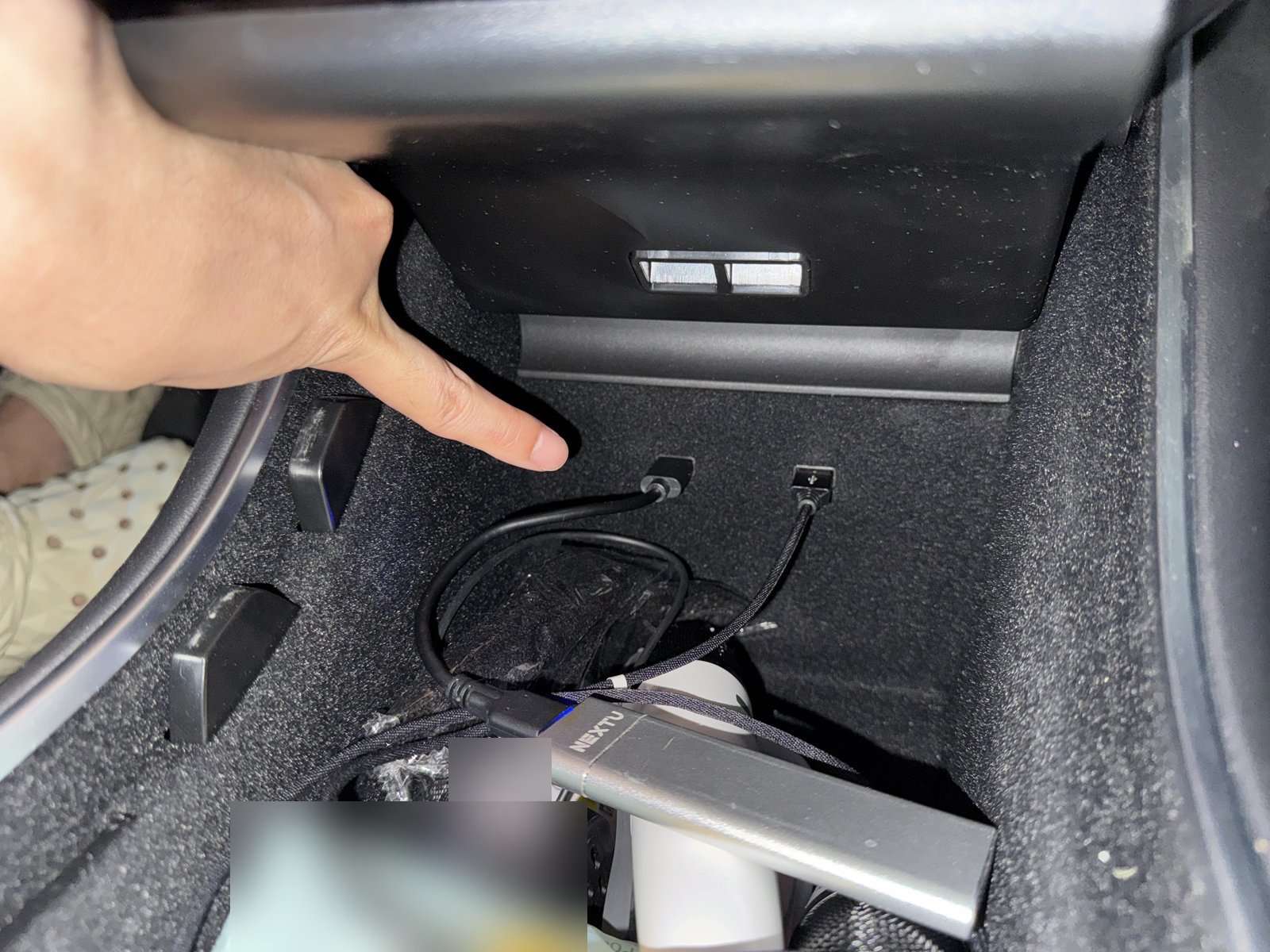
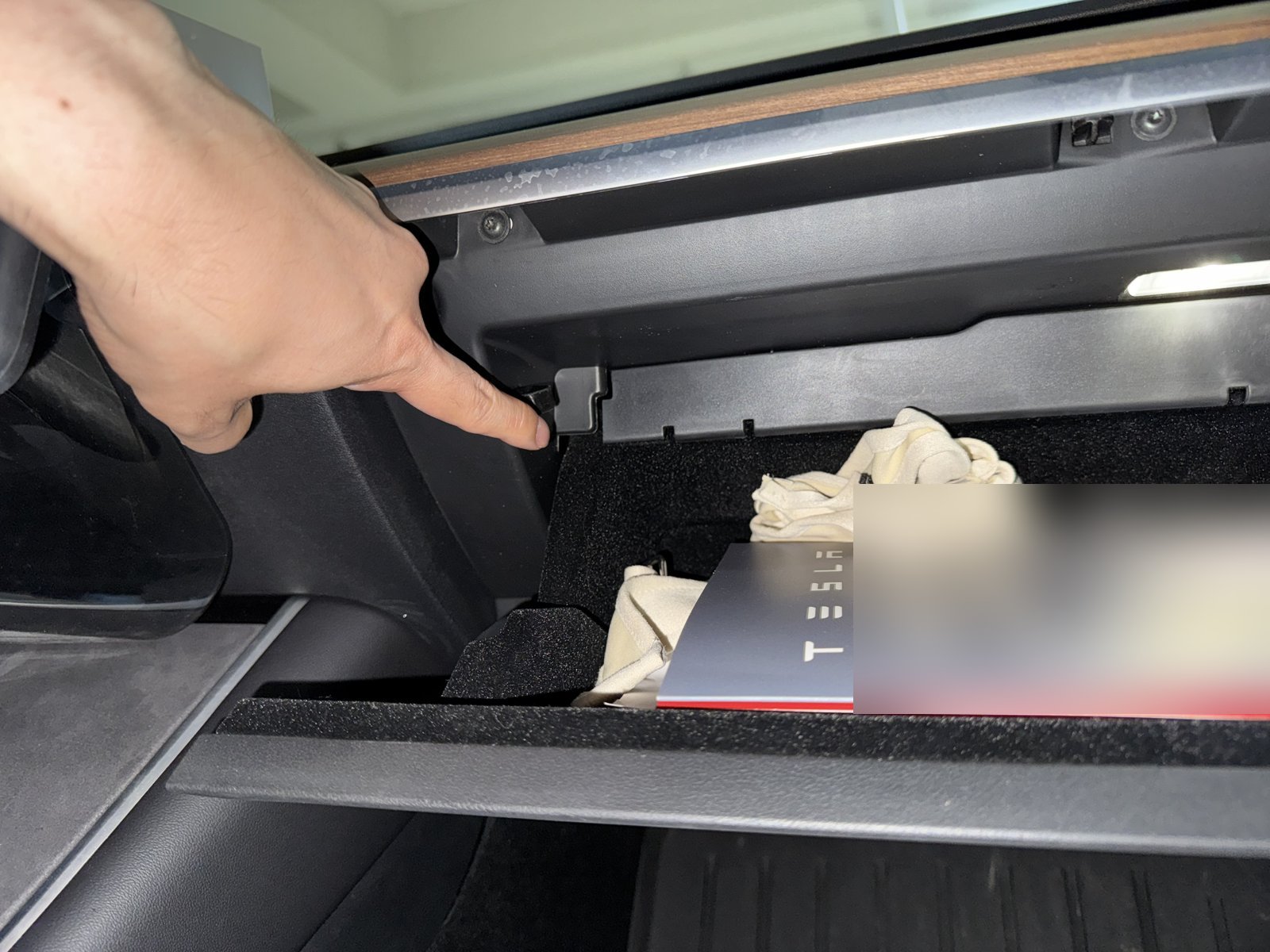
For other builds, use the glovebox recording port if fitted; otherwise use a front data port. Rear ports are charging-only. Tesla warns that some cars built after approximately November 1, 2021 have charging-only console ports. Check your vehicle’s manual and actual sockets.
A cable that charges a phone is not proof of a working data connection. When investigating a recording error, I would simplify the connection first: the drive, a suitable data cable where needed, and the correct port. My current setup leaves out the hub.
Checks before replacing the drive
1. Preserve footage and reconnect carefully
Do these checks while parked. Save any footage you need, pause Dashcam before unplugging, and copy important clips to another device before destructive changes. After reconnecting, confirm the drive is recognized and recording resumes.
If the recording matters for an incident, keep the original files and avoid experimenting with that drive. Use a separate suitable drive for troubleshooting.
2. Remove the hub and check the cable
I have tried a replacement cable and removed a hub. Those are useful ways to reduce the number of connections being investigated. Change one thing at a time and note whether the same warning returns. Test a direct connection first, then reintroduce accessories individually.
3. Check the format
After backing up: use Controls > Safety > Format USB Drive. Tesla says this creates exFAT storage and the recording folders; the drive must have at most one partition. If using a computer, exFAT with a top-level TeslaCam folder is supported; NTFS is not.
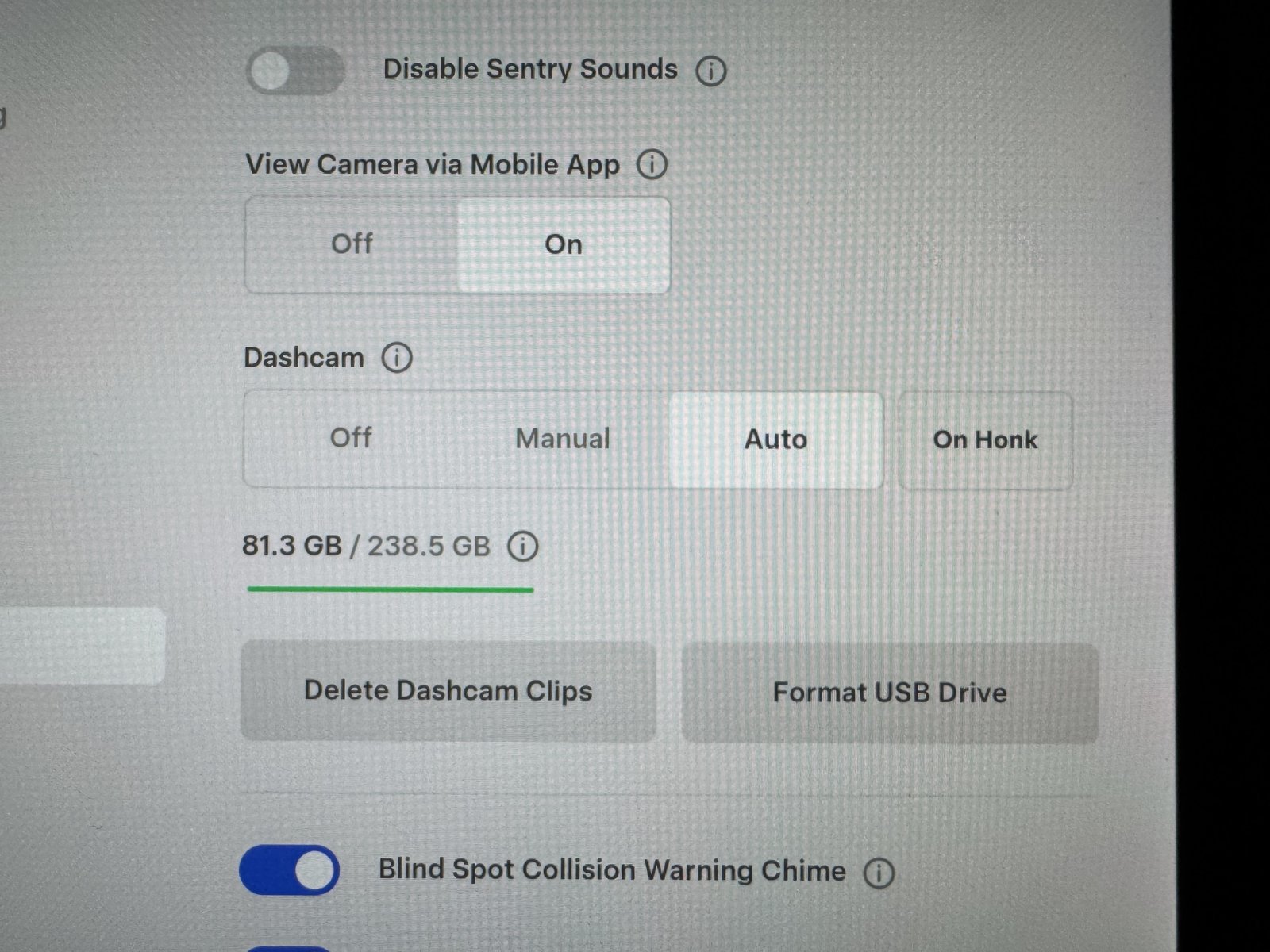
Check carefully which external drive you have selected on a computer. Formatting the wrong device would erase unrelated files. If you cannot confidently identify it or need footage recovered, stop before erasing anything.
I tried formatting my old setup. I would not keep reformatting indefinitely if the same error returned; I would compare with a known-working, correctly prepared drive.
4. Choose storage by specifications and compatibility
Tesla lists at least 64 GB, sustained writing of 4 MB/s or more, and USB 2.0 compatibility. Peak advertised speed is a different measure. Check the exact drive, cable and operating-temperature specifications.
My experience supports keeping the SSD setup that works on my car.
When shopping, check the exact model’s specifications, vehicle compatibility information and return terms. An expensive headline speed is less useful than a recording setup that stays connected and passes a saved-clip check.
5. If a suitable replacement still fails
Write down the exact alert, when it happens and the storage/cable/port combinations tried. If more than one correctly prepared, suitable drive has the same problem in the proper data port, arrange service rather than assuming another storage purchase will solve it.
If the whole touchscreen is frozen, my touchscreen troubleshooting guide addresses that symptom. A reboot should not substitute for checking whether fresh footage is actually saved.
How I check that recording is working
- Confirm the drive is connected directly to the intended port.
- Check the recording state on the screen.
- Save a short new clip using the car’s controls.
- While parked, open the viewer and play that newly saved clip—not just an old one.
- Close the viewer and check recording again. Tesla says recording pauses while the viewer is open.
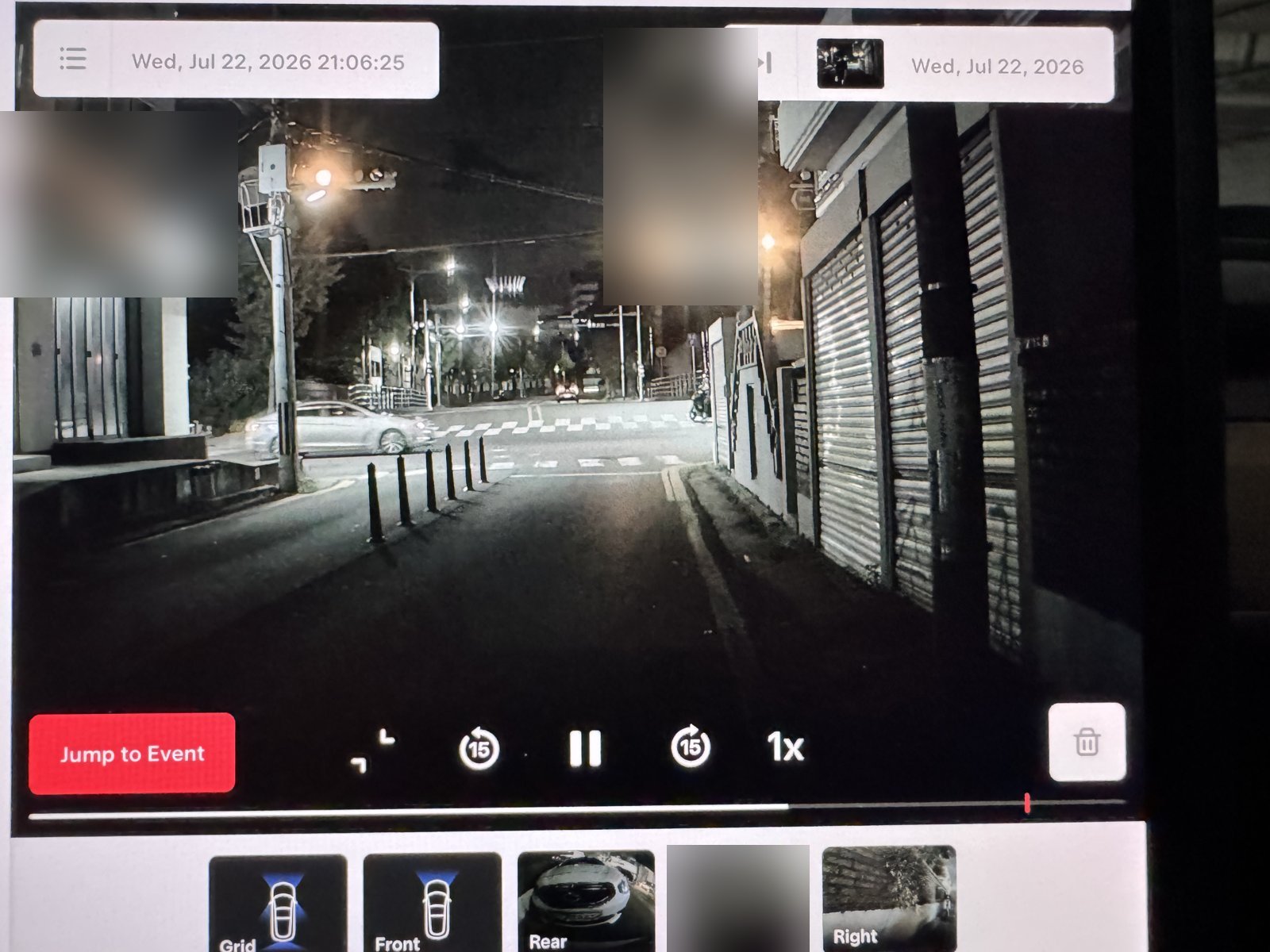
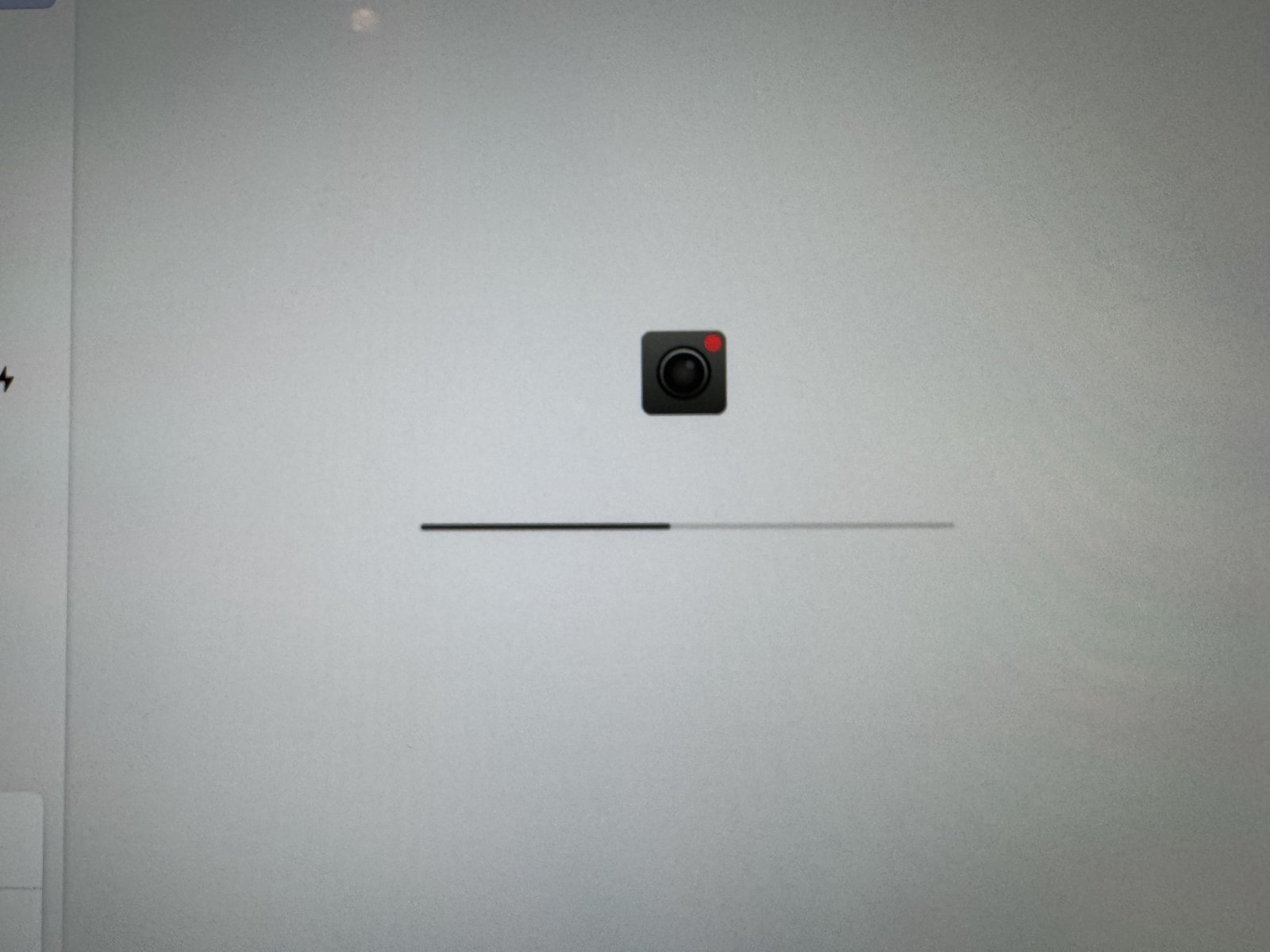
The screenshots show my car recognizing storage and playing footage.
Which Dashcam drive should you buy?
1. Buy for sustained recording, not headline read speed
The official baseline is 64 GB minimum, at least 4 MB/s sustained writing and USB 2.0 compatibility. Check the exact drive’s operating-temperature range and use a data-capable cable. A larger capacity is useful if you retain many clips, but capacity does not cure a bad cable or charging-only port.
2. Avoid the common mismatches
A charging-only cable can power a drive without carrying footage. A cheap drive with only a peak read-speed claim leaves the important sustained-write behavior unanswered. An unnecessarily complicated hub adds another connection to diagnose. Start with a direct connection, and treat frequent disconnects or write warnings as reasons to test the drive and cable rather than repeatedly formatting valuable footage.
3. My SSD choice and alternatives
My NEXTU portable SSD, connected directly without a hub, has worked for nearly five years after the old USB flash-drive errors. That makes a compact SSD a practical route I would consider again. For a current replacement, select a genuine, supported portable SSD with a short data cable and a clear return policy. A suitable endurance-oriented flash drive or supported memory-card/reader combination is an alternative when its complete setup meets Tesla’s requirements.
Spend on reliability before excess speed. Tesla’s data port, temperature conditions and cable still govern the setup. After installation, save and play a new clip. That playback test is the purchase acceptance check: a recognized drive with no fresh usable video is not a completed fix.
FAQ
Did formatting fix your USB recording errors permanently?
I tried it, but the lasting result I can report is nearly five years of trouble-free use after moving to the SSD setup.
Does every Tesla need an SSD?
No. My old flash drive had errors and my SSD has worked well. Suitable flash drives can also meet Tesla’s requirements.
Does a red dot guarantee that every important event is saved?
No. It indicates recording status. Tesla cautions that automatic event saving cannot be relied on to capture every safety-critical event. Save wanted footage and verify playback when safe.
Should I delete clips that will not play on my computer?
Not immediately. Keep a backup and check whether recording encryption is enabled. Tesla explains that encrypted files need the supported viewing or decryption process; an ordinary video player failing to open them does not by itself show corruption.
Official references
See Tesla’s USB requirements and formatting guidance and Dashcam controls and recording states. Menu details can vary with vehicle configuration and software. My own evidence is the June 2020 setup, photos and experience described above.
— Volt Fix Garage
Leave a Reply